Novulo Outlook Add-In Setup

Follow the steps below to successfully install and configure the Novulo Outlook Add-In. For troubleshooting, click here.

1. Which authentication method does your application use?

Standard Username & Password

Choose this if you log in directly to your Novulo application using a standard username and password stored within the Novulo system.

  1. Download & Install

    You can download the installation file for the Add-In here. The preview version is available here. Save the file to your computer.

    Note: This file might be blocked by your antivirus scanner. When asked if you want to delete or keep the file, choose to keep it.

    Upgrading to v2.2.x.x? Please uninstall any old versions (v2.1.x.x) first to avoid security or compatibility issues.

    To uninstall the old add-in, navigate to "Apps and features" on Windows, search for "Store in novulo", and uninstall it.
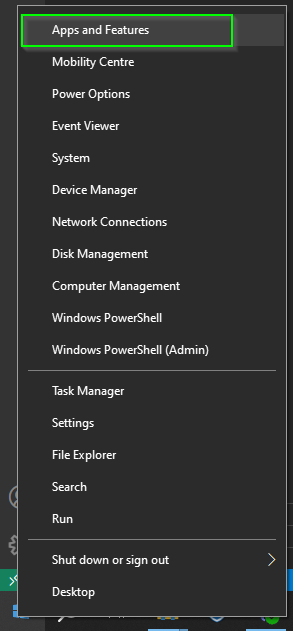
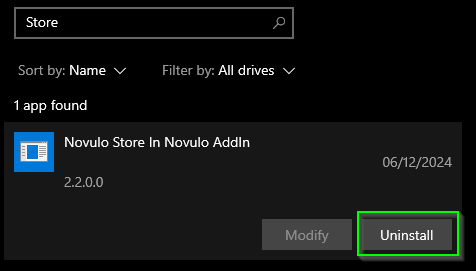
    Windows Apps and Features Uninstall old Novulo Add-In

    Be aware that any previous configuration you had will be lost.

  2. Prerequisites

    You may be missing certain programs on your computer required for the Add-In. The installation file will install them for you. Choose Accept terms when prompted. If all software is already installed, the Add-In will automatically install itself.

  3. Restart Outlook

    To ensure Outlook recognizes the Add-In, fully close Microsoft Outlook and reopen it.

  4. Open an Email

    Double-click on any received email so that it opens in a new, dedicated window.

  5. Find the Novulo Tab

    If installed correctly, you will see a new tab at the top of the email window named Novulo. Click on it.

  6. Open Settings

    Click on the Settings button in the ribbon.
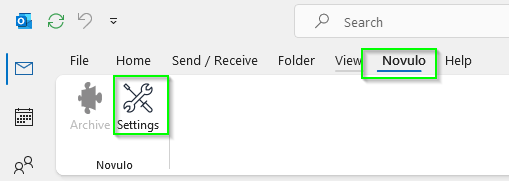
    Settings button disabled
  7. Configure Basic Authentication

    In the settings screen, provide your application details:

    1. Replace the system URL with the URL of your Novulo application.
    2. Enter your username and password.
    3. Click Save. The system will verify your login details immediately.
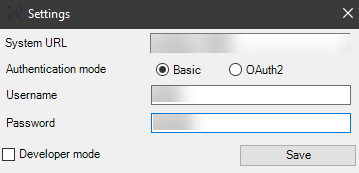
    Basic Settings screen
  8. Archive Emails

    After successful configuration, an Archive button will appear in the Novulo tab.
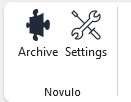
    Archive Button

    You can also right-click any email message in Outlook; an Archive option will be available at the bottom of the context menu.

  9. Open Archived Emails

    Once an email is saved, you can instantly open it within your Novulo application by clicking the new Open button (if supported by your app).

    Open Button

Repeat these steps on every computer where you want to use the Add-In.

Troubleshooting #

Below are some common problems and their solutions. The solutions shown adapt based on the authentication mode you selected at the top of the page.

Login failed, username and/or password incorrect #

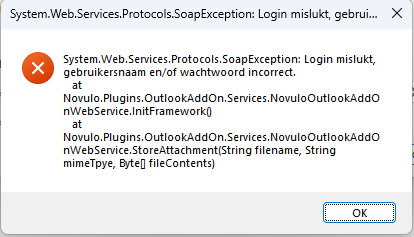
Login failed: incorrect credentials

Explanation

This error message appears when configuring the add-in. It means the credentials provided were rejected by the server.

Solution

For Basic Auth:

  1. Verify that your username and password are typed correctly and try again.
  2. Double-check your credentials by logging into the application via your web browser.

Invalid token during Outlook startup #

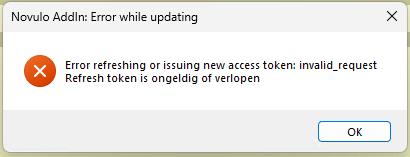
Invalid request token invalid

Explanation

This occurs when using OAuth2. The Access Token grants access temporarily, and the Refresh Token is used to silently renew it. If both expire, you are forced to log in again.

Solution

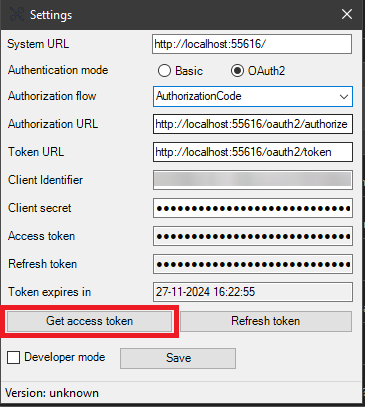
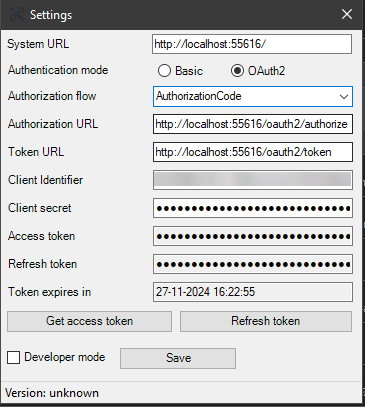
  1. Open the Novulo add-in settings in Outlook.
  2. Click on "Get access token" to log in and complete the authorization flow again.
Settings Get Access Token

Internal server error during Outlook startup #

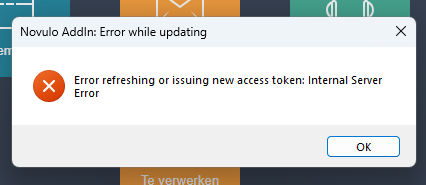
Internal server error

Explanation

The Novulo application suffered an unexpected error while trying to refresh or issue your access token. This usually means the problem is on the server side.

Solution

  1. Try to log in again via the settings dialog using the "Get access token" button.
  2. If it persists, verify if all settings are still correct following the installation guide.
  3. If everything is correct, please contact your primary contact person at Novulo for further assistance.