To install the Novulo Outlook Add-In, follow the steps below. For troubleshooting problems, click here.
You can download the installation file for the Add-In
here. The preview version is available here. Save the installation file to your
computer, for example on the Desktop. This file might be blocked by your antivirus scanner. When asked if you want to delete or keep the file, choose to keep it.
Please note: this add-in now supports OAuth2. If you are upgrading from v2.1.x.x to v2.2.x.x, we kindly ask you to please uninstall the old version first before installing the new one in order to avoid any security or compatibility issues. Thank you for your understanding.
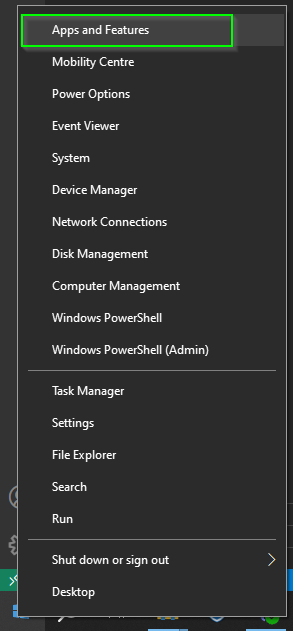
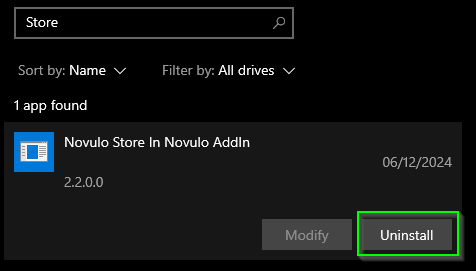
You can uninstall the add-in by navigating to the menu "Apps and features" on Windows. In the search this list, type "Store in novulo". Select the the Add-In and uninstall it: Be aware that any previous configuration you had will be lost.
You may be missing certain programs on your computer that are required for the proper functioning of the Add-In. The downloaded installation file will install them for you. When asked to accept terms and conditions, choose Accept terms. If all the required software is installed or was already installed, the Add-In will automatically install itself.
To ensure that Outlook recognizes the Add-In, you need to close Outlook
and then reopen it. If you have not started Outlook yet, do so now.
Once Outlook is open, double-click on a received
email so that it opens in a new window.
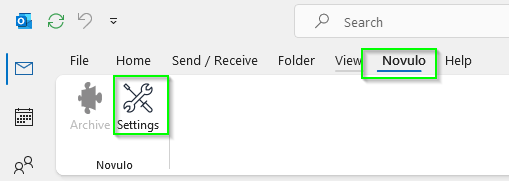
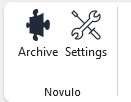
If everything is correct, you should see several tabs at the top, including one named Novulo. Click on it.
Now click on the Settings or Settings button.
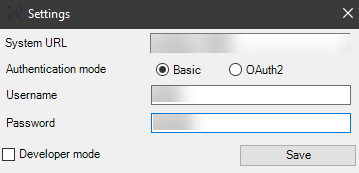
Select authentication mode:
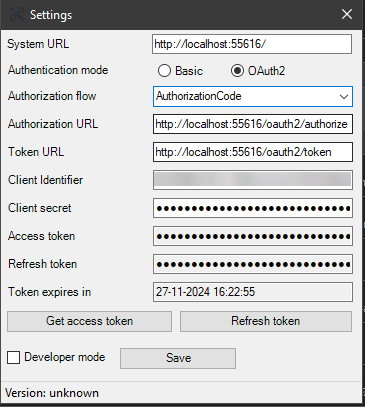
In the screen above, replace the system URL with the URL of your application, the
username with the name you use to log in to your application, and enter your
password in the password field. Then click Save. During
the saving process, it will be checked whether you can log in with these details.
OAuth2 Additional Steps:
Select authorization flow:
If you want to use an SSO user or if your user has TOTP enabled, you must select Authorization code or Implicit. It is recommended to use Authorization flow in most cases.
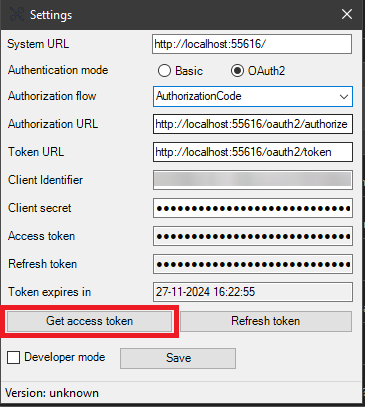
Fill in the configuration:
Ensure that in your Novulo application, for the OAuth client that you will be using, there is a Redirection endpoint record with the following URL: https://localhost:53436/.
Client identifier: Enter the client identifier visible in the Novulo application.
Client secret: Enter the client secret provided with the client identifier.
Client secret, Access token, and Refresh token are sensitive and encrypted before saving.
In the end a filled in configuration looks like the image below
Click Get access token and complete the authorization flow.
Click Save to proceed with storing emails in your Novulo application using the add-in.
After you have configured the Add-In, a Archive button will also appear in the Novulo tab.
To archive an email, you can use this button, or right-click
on an email message in Outlook. In the menu, a Archive button will be at the bottom.
Once the email message has been saved, you can, if your application supports it, open it again in your application by clicking the Open button.
Repeat the above steps on every computer where you want to use this Add-In in Outlook.
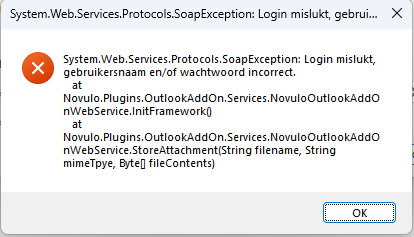
This error message appears when you're configuring the Novulo Outlook add-in. It tries to tell you that the username or password that you've provided, are incorrect. This can happen with both the basic and OAuth2 authentication methods.
Solution
Select authentication mode:
Verify that your username and password are correct and try again.
If necessary, check your login credentials by logging in to the website via the browser.
Navigate to the settings dialog, verify that your username and password are correct and try again.
Verify that the OAuth2 client in your application is connected to the correct client URL and the correct user (the one that you're logging in with).See installation step 8.
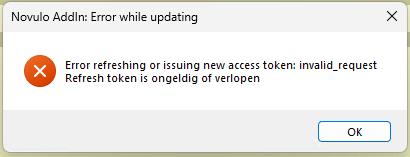
This error message appears when starting up Outlook and you're using OAuth2 as your login method for archiving emails. Back when you configured these settings, you've pressed the button "Get access token" to log in to your application. This action created two tokens for Outlook to use. Your access token and your refresh token.
The Access Token grants you access to the application when archiving an email until it's expired. The Refresh Token is used to request a new access token after your current has expired, without the need to log in again. When your refresh token is expired too, you're forced to log in again.
Solution
Open the Novulo add-in settings in Outlook.
Click once again on "Get access token" to log in. Complete the authorization flow.
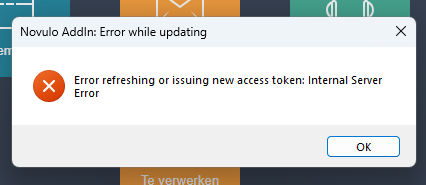
This error message appears when starting up Outlook and you're using OAuth2 as your login method for archiving emails. For some reason the Novulo application suffered from an unexpected and uncaught internal error while trying to refresh your access token or issuing a new access token. It tries to tell you that the problem is in the Novulo application and not in the Novulo Outlook add-in, and that the Novulo application didn't expect this error to occur at all. Usually an Internal Server Error also means that the problem cannot be resolved by you. Our developers will have to patch it.
Solution
Try to log in again via the settings dialog, button "Get access token".
If step 1 doesn't resolve the problem, verify if all settings are still correct by following the installation guide for OAuth2.
If all settings are correct and you still encounter the ISE, please contact your primary contact person at Novulo for further assistance.